Dual Monitor HD Wallpapers: Best Panoramic Backgrounds for Setup
Running two monitors side by side is one of the best upgrades you can make to a workstation or gaming rig. But the moment you stretch a standard wallpaper across both screens, you immediately see the problem: blurry edges, awkward seams, and images that look like they were designed for a phone. Panoramic HD wallpapers solve this. This guide covers what to look for, which styles work best, and how to set everything up correctly.
Why Standard Wallpapers Fail on Dual Monitor Setups
Most wallpapers are built for a single 16:9 display. The resolution sits at 1920×1080 or 2560×1440, and the composition is centered for one screen. When you span that image across two monitors, the operating system either stretches it beyond recognition or tiles it, putting a hard repeat line directly through your field of vision.
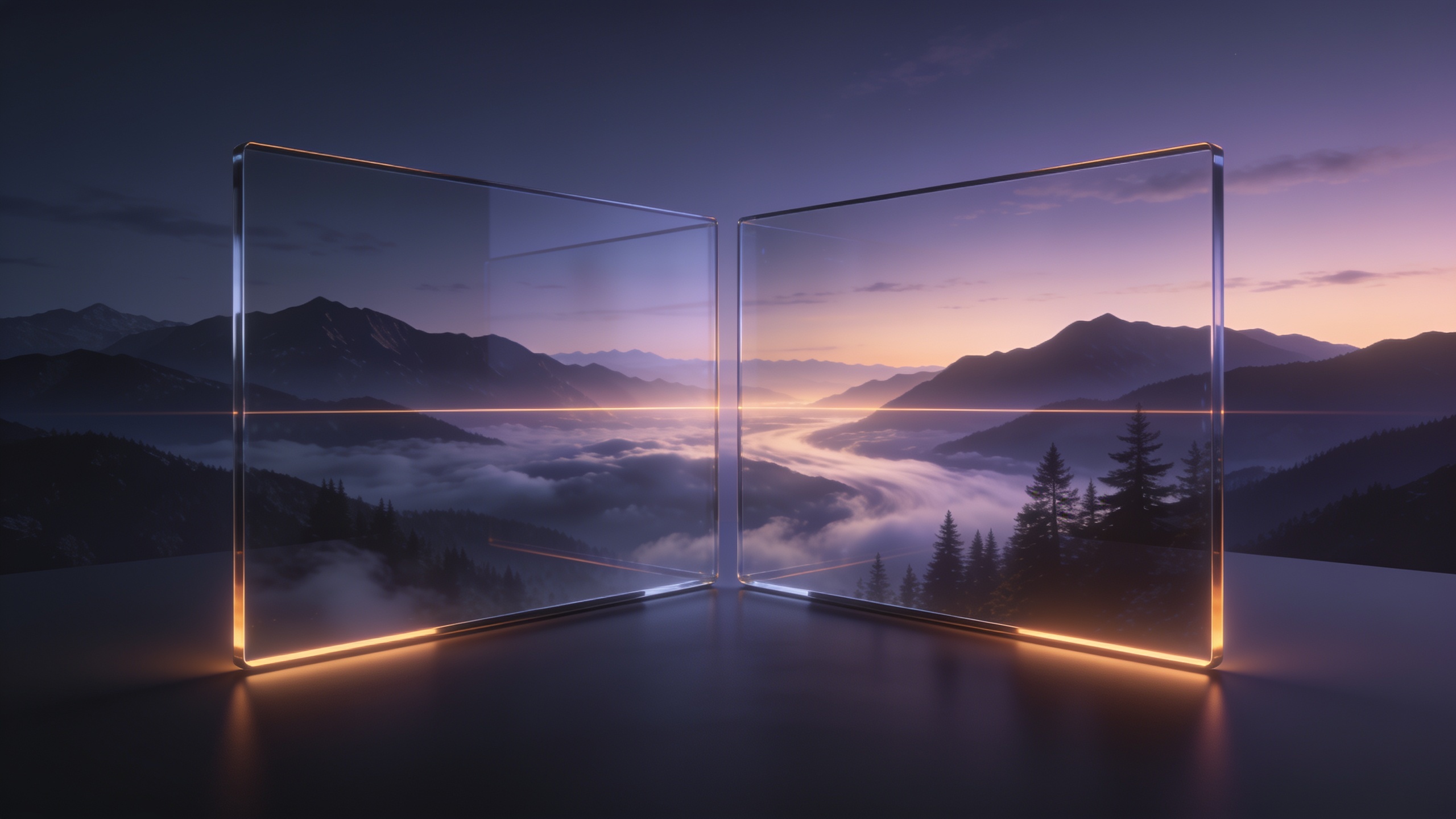
A proper dual monitor panoramic wallpaper is composed for the combined resolution of both displays. For two 1080p monitors, that means 3840×1080. For two 1440p monitors, you need 5120×1440. Starting with the right file is the only way to get a clean result.
Recommended Resolutions by Setup
| Monitor Configuration | Combined Resolution | Aspect Ratio |
|---|---|---|
| 2x 1080p (1920×1080) | 3840×1080 | 32:9 |
| 2x 1440p (2560×1440) | 5120×1440 | 32:9 |
| 2x 4K (3840×2160) | 7680×2160 | 32:9 |
| Mixed 1080p + 1440p | 4480×1440 | Custom |
Mixed resolution setups are the trickiest. If your monitors are different sizes or resolutions, you will get the best result by treating them as separate displays and using wallpaper management software rather than a single spanned image.
The Best Visual Styles for Panoramic Wallpapers
Landscape and Nature Panoramas
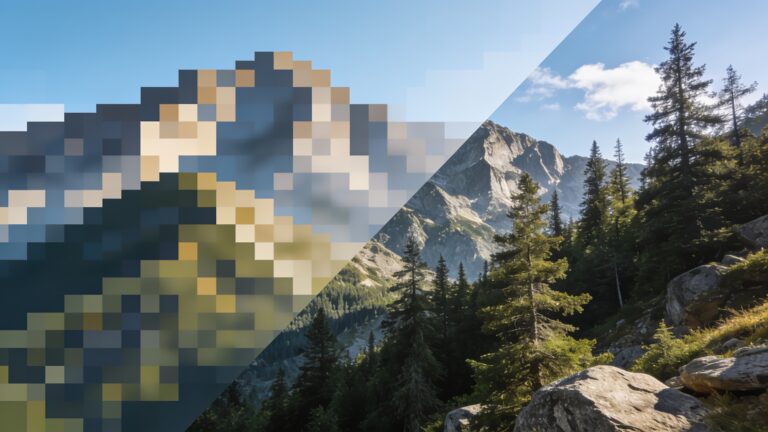
Wide landscape photography is the strongest category for dual monitor wallpapers. Mountain ranges, forests at golden hour, and coastal cliffs translate beautifully because the subject matter itself is horizontal by nature. The composition flows across both screens without demanding a focal point in any one place.
My personal favorites are aerial shots of winding rivers through dense forest, and wide-angle shots of the Milky Way over open plains. These images have detail everywhere, so the center seam between your monitors falls inside the image rather than cutting across a face or a logo.
Abstract and Geometric Art
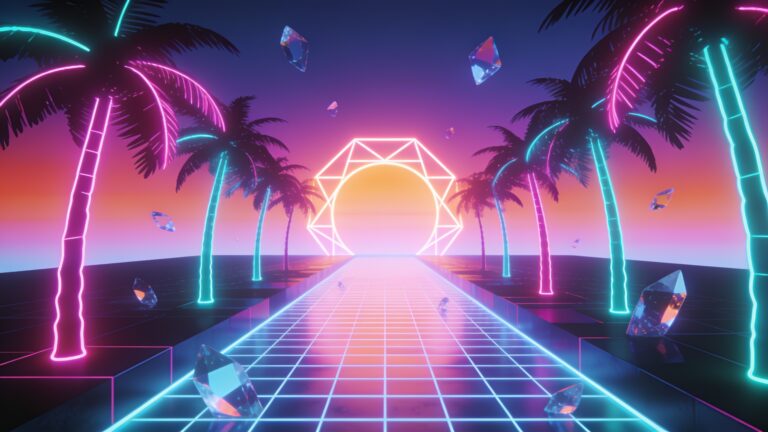
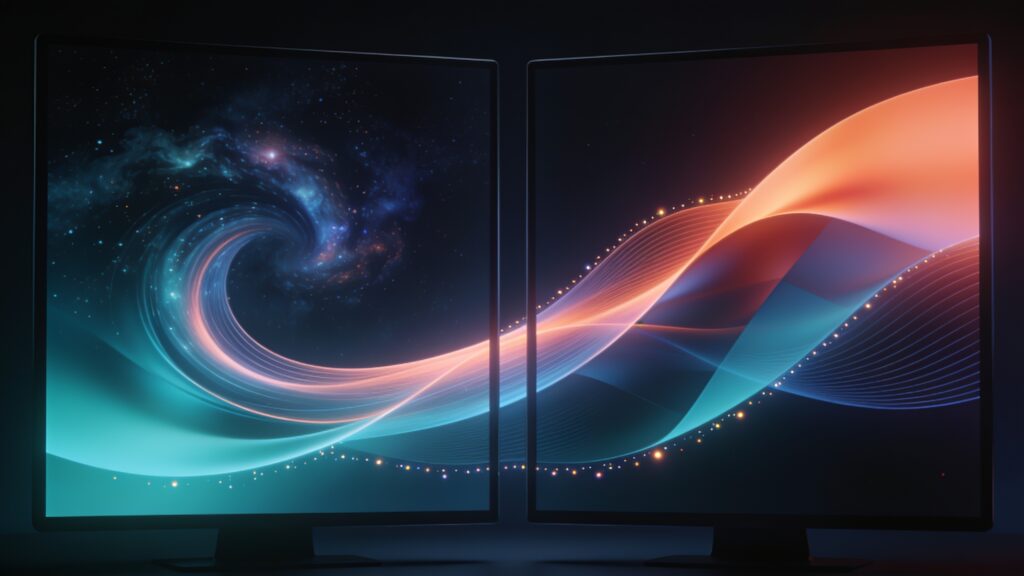
Abstract backgrounds are forgiving. Because there is no “correct” center of attention, the seam between screens is practically invisible. Flowing color gradients, particle fields, and geometric tessellations all work well. Dark-themed abstracts, especially deep blues, purples, and blacks, are particularly popular for gaming setups because they reduce eye strain during long sessions.
Cityscape and Architecture
Night cityscapes lit with neon and streetlight are a close second to nature photography. A wide shot of a skyline like Hong Kong, New York, or Tokyo at night gives you color, depth, and horizontal spread all at once. The key is finding images shot from a distance, where the skyline occupies the lower third and sky fills the rest. Those proportions work perfectly at 32:9.
Space and Sci-Fi
NASA releases a significant amount of ultra-high-resolution space imagery into the public domain. Nebulae, galaxy clusters, and planet surface renders all come in resolutions that comfortably cover dual 4K setups. This category also benefits from having no fixed horizon, so any crop point looks intentional.
Top Sources for Dual Monitor Wallpapers
Here are the most reliable places to find properly sized panoramic wallpapers:
- Reddit’s r/WidescreenWallpaper community uploads 3840×1080 and 5120×1440 content daily, with user ratings to help you find quality quickly.
- Wallpaper Engine on Steam has a dedicated ultrawide and dual monitor category with animated options that go well beyond static images.
- NASA’s Image and Video Library (images.nasa.gov) has free, high-resolution space images with no usage restrictions.
- Unsplash and Pexels both carry landscape photography in resolutions above 5000 pixels wide, which you can crop to your exact combined resolution.
- DeviantArt has a large archive of rendered fantasy and sci-fi panoramics from digital artists, many uploaded specifically for widescreen use.
How to Set Up a Spanned Wallpaper Correctly
Windows
Open Settings, go to Personalization, then Background. Set the background type to “Picture” and choose your image. Right-click the wallpaper preview and select “Span.” Windows will stretch the image across both displays as a single unit. This works cleanly if your monitors are the same resolution and height.
macOS
macOS handles multi-monitor wallpapers differently. Each screen gets its own wallpaper by default. To use a spanned image, you need a third-party app like HiDock or Mango 5Star. Alternatively, you can crop your panoramic image into two halves and assign each half to its respective screen manually.
DisplayFusion (Windows, Recommended)
DisplayFusion is the gold standard for multi-monitor wallpaper management on Windows. It handles mixed resolution setups, automatic wallpaper rotation, and per-monitor positioning controls. The free version covers most needs. If you run a complex three or four monitor setup, the paid version is worth it.
Quick Tips for Better Results
Getting the setup right is only part of the equation. A few habits will keep your desktop looking sharp over time.
- Always download the highest resolution version of an image available. You can scale down, but scaling up destroys detail.
- Match your wallpaper’s color temperature to your monitor’s profile. A warm-toned image on a cold-calibrated display will look muddy.
- For monitors with different brightness levels, pick wallpapers with a wide mid-tone range rather than deep blacks or blown-out highlights.
- Save your favorite panoramics in a dedicated folder and rotate them on a weekly schedule to keep your setup fresh.
- Check the pixel dimensions before downloading. Many sites label images as “HD” when they are 1920×1080 or smaller, which falls short for dual monitor spanning.
Key Takeaways
The right panoramic wallpaper transforms a dual monitor setup from functional to visually cohesive. Start with the correct combined resolution for your specific monitors. Prioritize wide landscape photography, abstract art, and space imagery for the best visual results. Use DisplayFusion on Windows if your monitors are mismatched. And pull from quality sources like r/WidescreenWallpaper and NASA’s image library before paying for anything.
Browse the collections on hdwpro.com filtered by resolution, download your preferred panoramic, and set it up today. The difference between a stretched mess and a properly composed dual monitor background is immediate.