How to Find HD Wallpapers for Your Laptop
Your desktop wallpaper is the first thing you see every time you open your laptop. A blurry, stretched, or pixelated image sets the wrong tone for the entire session. Finding the right HD wallpaper sounds simple, but the process trips people up more than it should. Wrong resolutions, low-quality sources, and cluttered download sites waste your time. This guide cuts through all of that.
Know Your Screen Resolution First
Before you search for anything, check your laptop’s screen resolution. Downloading a 1280×720 image for a 1920×1080 display is the single biggest mistake people make. The image stretches to fill the screen and looks terrible.
On Windows, right-click your desktop, select “Display Settings,” and scroll to “Display Resolution.” On a Mac, go to System Settings, click “Displays,” and read the number listed there. Write it down. That number is your target.
Most modern laptops fall into one of these common resolution categories:
| Screen Type | Resolution | Common Laptops |
|---|---|---|
| Full HD | 1920×1080 | Budget to mid-range Windows |
| 2K / QHD | 2560×1440 | Mid-range to premium Windows |
| 4K UHD | 3840×2160 | High-end Windows, some MacBooks |
| Retina (2x) | Varies | MacBook Pro, MacBook Air |
Always download at or above your screen’s native resolution. A 4K image on a 1080p screen looks sharp. A 720p image on a 1440p display looks soft and washed out.
The Best Sources for HD Wallpapers
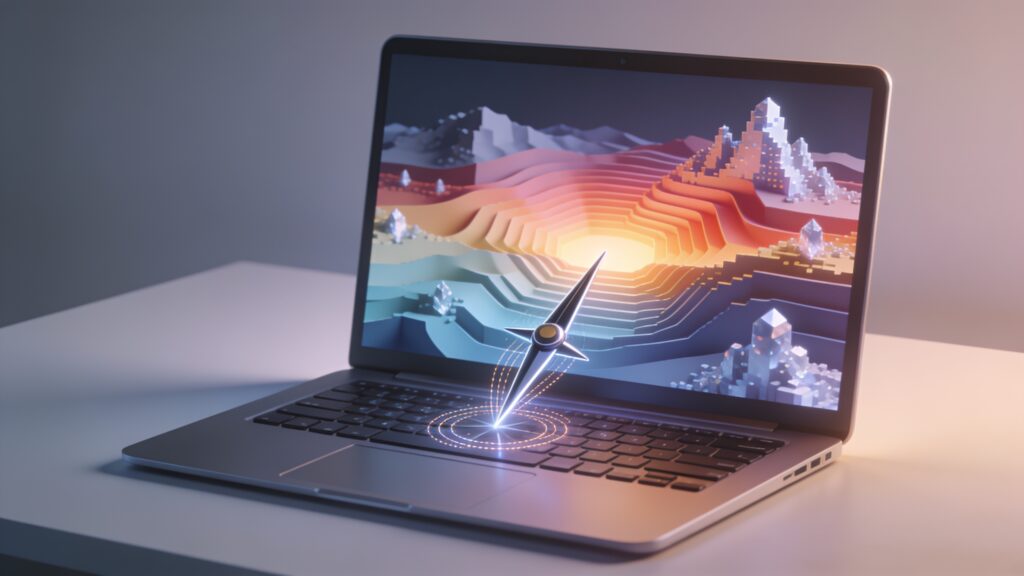
Not every site is worth your time. Here are the ones I actually use and trust.
Dedicated Wallpaper Sites
Sites built specifically for wallpapers maintain image quality far better than general image search engines. Wallhaven is my top pick. It has a massive library, a filtering system that lets you sort by resolution, aspect ratio, and category, and the community curates the content well. You can search for exactly 1920×1080 or 2560×1440 images and get clean, high-quality results.
Unsplash is another strong option, particularly for photography-based wallpapers. Every image there is high resolution and royalty-free. The photography quality is high, and the downloads are direct with no redirects or popup traps.
Operating System Built-In Options
Windows 11 ships with a wallpaper spotlight feature that rotates curated HD images automatically. You can also browse additional themes through the Microsoft Store, many of which include photography packs at 4K resolution. It costs nothing and the images are optimized for Windows displays.
On macOS, Apple provides a solid selection of dynamic desktop images that shift with the time of day. They are shot at high resolution and look polished on Retina displays. Check System Settings under Wallpaper for the full library.
Search Engines Done Right
Google Images can work, but you need to filter properly. After searching, click “Tools,” then “Size,” then “Large.” This filters out small or low-resolution files. For even better control, add the resolution directly to your search query. Searching “mountain landscape 2560×1440 wallpaper” returns far more targeted results than a vague search.
What to Look for in a Quality Wallpaper Image
Resolution is only part of the equation. A few other factors separate a great wallpaper from a mediocre one.
- File format matters. PNG files preserve image quality better than JPEG at similar file sizes. JPEG is fine for photography, but avoid heavily compressed JPEGs with visible artifacts.
- Aspect ratio should match your screen. Most laptops use 16:9. Ultrawide laptops use 21:9. A wallpaper shot for a 4:3 ratio will crop awkwardly on a widescreen display.
- Busy images fight with desktop icons. If you keep files or shortcuts on your desktop, choose a wallpaper with a clear focal point and simpler edges. Wallpapers with complex textures across the entire frame make icons hard to read.
- File size is a loose quality indicator. A 1920×1080 wallpaper at 500KB is likely compressed heavily. The same image at 2MB to 5MB is more likely to retain fine detail.
How to Set a Wallpaper Correctly on a Laptop
Downloading the image is half the job. Setting it up correctly matters just as much.
On Windows, right-click the image file and select “Set as desktop background.” Then go to Display Settings and check how the image is positioned. The “Fill” setting scales the image to cover the screen while maintaining aspect ratio. “Fit” adds black bars if the ratio differs. “Stretch” distorts the image to fill the screen and is the option to avoid.
On macOS, open System Settings, go to Wallpaper, then drag your downloaded image into the window, or click “Add Photo.” Set the display mode to “Fill Screen” for the cleanest result.
Keeping Your Wallpaper Collection Organized
If you download wallpapers regularly, a folder system saves frustration later. I keep a single “Wallpapers” folder with subfolders by resolution and category. Something like “1920×1080 > Nature” and “2560×1440 > Abstract” makes finding the right image fast.
Rename files when you download them. Default filenames like “wallpaper_hd_2938472.jpg” are useless three months later. A name like “iceland_aurora_1920x1080.jpg” is instantly readable.
Key Takeaways
Finding a great HD wallpaper for your laptop takes about five minutes if you follow the right steps. Know your resolution before you download anything. Use dedicated wallpaper sites like Wallhaven or Unsplash over random image searches. Pay attention to file format, aspect ratio, and compression quality. Set the image using “Fill” mode so it scales properly without distortion.
A sharp, well-chosen wallpaper makes your laptop feel like yours. Start with your native resolution, pick an image that works around your desktop layout, and take two minutes to set it up correctly. The difference is immediate.